Resources

Product updates

All the latest updates, improvements, and fixes to TheirStack

November 5, 2026

Job description searches are up to 82x faster
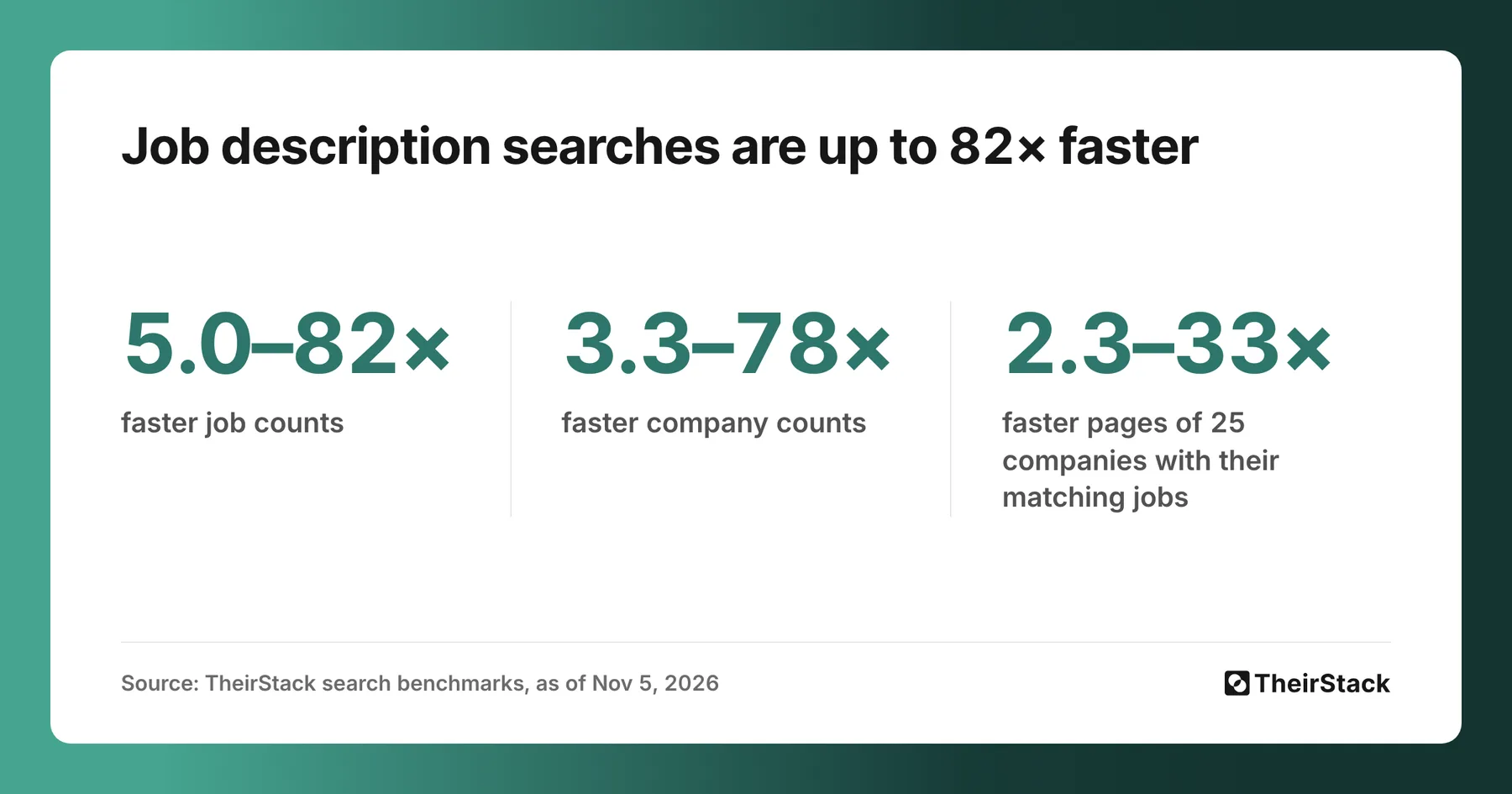
Job description searches are up to 82x faster

You can now investigate buying signals across years of job descriptions in seconds. Search any set of words or phrases that describe the problems you solve, find the companies mentioning them, and read the matching jobs to understand their needs.

TheirStack’s archive contains hundreds of millions of job postings from companies worldwide. You can explore years of that hiring activity in seconds, including searches that previously took minutes or timed out. That lets you find potential buyers beyond those who posted a job in the last 30 or 60 days.

You can combine phrases to find different ways a company describes the same problem. The observability example below searches for 14 phrases about telemetry costs and scale. Longer phrase searches can still take more time.

Faster counts and company results

Compare one two-word phrase, single words with OR, or multiple phrases with OR. Blue: before. Green: now. Select a date range to try that search.

Jobs mentioning lead generation.

Job counts

7 days: before 2.36s, now 0.48s; 30 days: before 12.34s, now 0.43s; 60 days: before 18.92s, now 0.61s; 1 year: before 2m34s, now 1.88s; 2 years: before estimated completion time after an unsuccessful request 3m50s (request failed: 500), now 4.11s0s2m4m2.36s0.48s12.34s0.43s18.92s0.61s2m34s1.88s3m50s*4.11s
5.0×
28.8×
31.0×
81.8×
~56×

Company counts

7 days: before 4.20s, now 1.26s; 30 days: before 9.90s, now 1.94s; 60 days: before 22.94s, now 1.29s; 1 year: before 1m16s, now 2.24s; 2 years: before estimated completion time after an unsuccessful request 6m20s (request failed: 504), now 4.09s0s3.5m7m4.20s1.26s9.90s1.94s22.94s1.29s1m16s2.24s6m20s*4.09s
3.3×
5.1×
17.8×
33.8×
~93×

25 companies + matching jobs

7 days: before 3.10s, now 1.06s; 30 days: before 13.14s, now 1.89s; 60 days: before 22.95s, now 1.64s; 1 year: before 2m12s, now 4.97s; 2 years: before estimated completion time after an unsuccessful request 6m40s (request failed: 500), now 5.97s0s3.5m7m3.10s1.06s13.14s1.89s22.95s1.64s2m12s4.97s6m40s*5.97s
2.9×
7.0×
14.0×
26.6×
~67×

* Old searches marked with * timed out or returned an error. Their completion times and ~ speedups are estimates based on recorded query progress. Each panel has its own time scale. Thumbnail speedup ranges use completed measurements only.

Use Job description → Contains any of in Job Search or Company Search. The same filter is available in the Jobs API and Company Search API.

The Contains any of filter matches words and adjacent phrases, ignoring case and accents. Punctuation separates words. This can change which descriptions match. Regex pattern filters keep their existing behavior.

Try it yourself

Find jobs mentioning any set of words or phrases you choose, or the companies behind them.

Add several words or phrases. Press Enter or comma after each to create a separate tag. Jobs only need to mention one of them.

November 4, 2026

Now you can filter job and company search by CRM status

Now you can filter job and company search by CRM status

You can now filter job search and company search by a company's status in your CRM. Connect HubSpot and add the CRM status filter to leave your customers and open deals out of a search, or to see which of your CRM accounts are hiring for a role.

Until now, these searches could only use your HubSpot list as a whole, whatever the status of each company. The filter lists the same statuses as Signals, your own included:

To findSet the filter to
Companies in your CRM with no other statusis any of In CRM
Companies to win backis any of Former customer and Lost deal
Everything except customers and open dealsis none of Customer and Open deal
Companies that are not in your CRMis any of No CRM match

You can save a search that uses the filter and turn on its alert. Webhooks and signals can't use it yet, so remove the filter from a search before you add a webhook to it.

A customer we couldn't match to its HubSpot record counts as No CRM match, so it stays in a search that leaves customers out. The HubSpot guide shows how to fix its match.

In the API and MCP, use company_crm_status_or and company_crm_status_not on job search and company search. The HubSpot integration is in beta, and HubSpot is the only CRM we connect to for now.

Now you can connect HubSpot to TheirStack

Now you can connect HubSpot to TheirStack

You can now connect HubSpot to TheirStack. Every account in Signals shows where it stands in your CRM, the accounts your team already works with leave the feed, and you can send the companies you find to HubSpot. Until now, getting them there took a CSV export and an import, or a webhook connected through Make, n8n or Zapier.

To connect, a workspace owner goes to Settings → Integrations → HubSpot and clicks Connect HubSpot. A CRM with 20,000 companies takes about 10 minutes to import. TheirStack reads your companies, their properties and your owners, and it never reads contacts, emails, notes or deals.

See each account's CRM status in Signals

Each account in the feed shows its CRM status next to its name, or No CRM match when it isn't matched to a HubSpot company. By default, the feed hides accounts with the statuses Customer and Open deal. A company you lost a deal with stays in it, so a new signal can tell you when to call again.

The Signals accounts feed with a CRM status on each account: Lost deal, In CRM, No CRM match and Former customer.

Decide what counts as a customer

Every team tracks customers differently in HubSpot, so you write the rule for each status on your own properties, custom ones included. By default, Customer means Lifecycle Stage is any of Customer or Evangelist, and Open deal means Number of open deals is greater than 0. You can change those rules and add statuses such as Lost deal or Competitor. Before you save, a preview shows which companies change.

Send companies to HubSpot

Select companies in a company search or a company list, open the HubSpot menu and click Send to HubSpot. TheirStack creates the ones HubSpot doesn't have and fills in the empty properties of the ones it has, so a company already in HubSpot is never created twice. Each company gets its website, its LinkedIn URL, its number of technologies, its number of job postings and its TheirStack profile, and a workspace owner can change which field goes to which property.

The Send 6 companies to HubSpot dialog: 3 will be created, 2 are already in HubSpot and will be updated, and 1 can't be sent because it has not been revealed.

Sending needs the write permission HubSpot asks for when you connect. Without it, the integration only reads. You can send up to 1,000 companies at once, as long as you have revealed them. A signal never creates a company in HubSpot on its own: someone has to send it.

Use your CRM in your searches

TheirStack keeps a HubSpot company list in sync, with one row per HubSpot company and any HubSpot property as a column. Changes in HubSpot can take up to an hour to show. You can use the list in your searches like any other, and you can also filter job and company search by CRM status.

Connecting HubSpot, syncing it and sending companies to it are free. Revealing companies costs the same credits as usual. The integration is in beta, with one HubSpot account per workspace. If something doesn't work as you expect, open a ticket. The HubSpot guide covers the whole setup.

October 23, 2026

Find out sooner when a search needs more credits

You no longer have to wait for a paid search for jobs or companies to run before finding out you need more API credits. Searches through the API and MCP now check your balance first and return HTTP 402 when it cannot cover the requested results.

The check uses your requested limit multiplied by the credit cost per job or company. Your balance must cover that full amount, even if the search would return fewer matches. When your balance is positive but too low, the error tells you how many credits are required, how many you have and how many more you need.

For example, with 1 API credit available, a job search with limit: 9 requires 9 credits and returns 402. Lower the limit to 1, or add 8 credits and retry.

Successful searches still charge only for the records returned. If you have enough credits for limit: 9 and the response contains 2 jobs, you spend 2 API credits.

Use the pagination guide to choose a smaller page size, or add credits in your billing settings.

October 6, 2026

Company entity resolution: one profile per employer

We have rebuilt company entity resolution: how we decide that records from different sources describe the same employer, even when their names, legal entities or websites don't match. The new system has merged more than a million duplicate company records into the profile of the company they belong to, so jobs and technologies that used to be spread across several profiles of the same employer now sit together.

Duplicates come from the way we collect data. We gather jobs from more than 362,000 websites: applicant tracking systems like Workday, Greenhouse and Ashby, job boards like LinkedIn, Indeed and JOIN, and thousands of company careers pages. A company that hires on several of them shows up once per source, and each source describes it in its own way. One spells the name differently, another adds the legal entity, a third lists no website at all. Left as separate records, they split the company's jobs across several profiles and make it appear more than once in a company search.

We already merged exact duplicates as jobs came in. The records left were the ones that don't look alike at first sight, and telling which of those belong to the same company is what entity resolution does. The difficulty runs both ways: merge too little and duplicates stay, merge too much and two different companies end up mixed in one profile.

Before: separate company records scattered. After: the same records linked into groups, each group shown as one company profile.

A schematic view: each colored dot represents a company record. We link the records that belong to the same employer and show each group as one profile.

How we decide two records are the same company

Every record carries signals about the company behind it, and not all of them count the same. Some are strong enough on their own to tell us two records are the same company. Others are weak and only count when several point the same way. Records linked this way form a group, and each group becomes one company profile, with its jobs and technologies together.

Signals can also contradict each other: two records may share one while everything else says they are different employers. In that case we keep them apart, because two profiles for one company is a smaller problem than one profile mixing the jobs of two.

Strong signals link records on their own, weak signals add up, and conflicts keep records apart.

An example: QuidelOrtho, a match and a non-match

QuidelOrtho, the diagnostics company, appears in our data as six records from LinkedIn, Indeed, Workday and JOIN. Five of them are some spelling of "QuidelOrtho", a few with a legal suffix like "Corporation" or "Sales Company, LLC".

Six records connected into one QuidelOrtho profile, including Ortho-Clinical Diagnostics, Inc. A seventh record, Ortho-Clinical Diagnostics K.K., is kept apart.

The sixth, "Ortho-Clinical Diagnostics, Inc.", has a different name, but enough signals agree to link it to the QuidelOrtho group.

"Ortho-Clinical Diagnostics K.K." looks almost the same as that record, yet it stays a separate profile. It shares a single signal with the group, and nothing else confirms it is the same employer.

More than a million duplicate records merged

The count is of records merged, not companies: a company that had five duplicate records accounts for five of them. For companies whose records were merged, a search now brings together jobs previously split across those profiles, with fewer duplicate entries in company searches. You can look any company up in the app to see its jobs and technologies together.

We will keep improving how we resolve company identities, so that fewer duplicates reach your searches and each company's jobs and data stay together in one profile.

September 10, 2026

Skip the records a webhook missed while it was off

A webhook keeps track of what its saved search matches even while it is disabled. Until now, turning it back on delivered all of it: every record matched during the pause was sent and charged. After a short pause you did not mean to leave, that is what you want. After a long one, or when you disabled it precisely to stop the feed, it is a surprise burst of events and credits. Now you choose.

In the app

Flip a disabled webhook back on and a dialog opens before anything is sent:

A disabled webhook, with the status toggle set to Inactive

The enable dialog, with two options: Deliver the missed records (the default, sent as soon as you enable the webhook and charged as usual, what webhooks did before) or Skip them (the new option, highlighted, nothing sent or charged and the feed starts from the moment you enable it)

In the API

Enabling a webhook is PATCH /v0/webhooks/{id}/status with is_active: true. Pass skip_events_while_inactive: true alongside it to start the feed from that moment instead of replaying the backlog:

{
    "is_active": true,
    "skip_events_while_inactive": true
}

skip_events_while_inactive defaults to false, so a call that only sends is_active: true behaves exactly as before: the webhook delivers everything matched while it was disabled. You opt into skipping by sending true, and nothing changes for existing integrations that never send the field. Sending it on a disable (is_active: false) is ignored; the choice is read when you enable.

With MCP

update_webhook_status on our MCP server enables and disables a webhook, and honours the same choice. Tell an assistant connected to your workspace to turn a webhook back on without replaying what it missed, and it starts the feed from now.

September 8, 2026

Now you can filter companies by when you revealed them

If you run weekly or monthly lead pulls in TheirStack — revealing companies in batches and pushing them to Apollo, a CRM, or a spreadsheet — you've probably wanted to go back and ask "give me the companies I revealed between these two dates" without rerunning the original search.

You can now. There's a new Company Reveal state filter on both company search and job search. It gives you three choices: keep only companies you've never revealed, keep only ones you've revealed at some point, or pick Revealed between dates to narrow to the ones you revealed inside a window you choose.

In the API, this maps to two new filters on /v1/companies/search and /v1/jobs/search:

  • company_revealed_at_gte — only include companies you revealed at or after this timestamp
  • company_revealed_at_lte — only include companies you revealed at or before this timestamp

Both are team-scoped — they use the reveal history of the calling team, so the filter only narrows to companies you've actually revealed.

Why we built this

A few customers told us they run the same search week after week with the reveal filter set to exclude companies they'd already seen, export the result, and push it to Apollo. The catch: as soon as you scroll through the results table and click into companies, those get marked as revealed, so by the time you hit Export the filter has shrunk what comes back. The export ends up empty or near-empty.

With this filter, the workflow becomes:

  1. Do your pull however you like — search, browse, reveal.
  2. When you want to act on that batch, search again with Company Reveal state → Revealed between dates set to the window of that pull (e.g. last 7 days).
  3. Add the results to a list, or export them straight to CSV / push to Apollo.

The "revealed in the last week" set is now something you can ask for directly, instead of reconstructing it by holding the results page open and hoping nothing scrolls.

What you need to do

Nothing. The filter is live in the app under the Company group, and the two API fields are documented in the company search and job search references.

See what spends your credits: API, app, webhooks and MCP

When your credit consumption goes up, the first question is where it came from. Settings → Usage now opens with one daily chart of credits by delivery method, and lets you follow any of them down to the calls that produced them without leaving the page.

Start from the overview

The overview stacks each day's credits by delivery method: API, app, webhooks and MCP. API and Company credits stay separate, because they are different units and adding them together would tell you nothing. Consumption we cannot attribute to a delivery method is still shown rather than dropped from the total, so the chart adds up to your bill.

Each card takes you to the section below with that origin already selected, so one click lands you on the requests or the webhook events behind the number.

Daily credits stacked by delivery method, with a card per method

Requests are listed one by one, and you can switch the chart between request counts and credits. Breakdown by groups them by search pattern, status, endpoint or origin.

A search pattern is a set of requests that sent the same stable filters, so a saved search you run every morning reads as a single line with its total cost instead of thirty rows. Open a pattern to see the normalized filters behind it and drill into the original requests, each with its duration, credits, status and returned records, still on the same page.

Filters only offer values that actually occur in your workspace, and every option shows its total for the metric you are looking at, largest first. So you pick from what happened, rather than guessing at endpoint names.

Requests broken down by search pattern, measured in credits

Webhooks

Webhooks get the same treatment: events or credits, broken down by webhook, event type or status, so you can see which one accounts for the period. A charge split across several ledger entries still counts as one event, so the counts and the credits agree.

Webhook events broken down by webhook

Usage where you configure it

The API keys page and the MCP page now carry the same chart, scoped to that channel. The MCP page also breaks usage down per tool, so you can see what search_jobs and search_companies each cost you, and open the request log narrowed to one tool's calls.

Per-tool usage on the MCP page, with calls and credits per tool

Share an investigation

Dates, filters, breakdown, metric, selected series and page all live in the URL. Bookmark a spike or send the link to a teammate and they open exactly what you were looking at.

In the API

GET /v0/requests/ lists individual requests with their duration, api_credits and ui_credits. GET /v0/requests/analytics returns daily counts and credits, with group_by set to search_pattern, endpoint, origin or status. GET /v0/requests/facets lists the values you can filter on. For spending by charge date, use GET /v0/teams/credits_consumption.

The two follow different clocks, which is worth knowing before you reconcile them: the overview follows the date the credits were charged, while requests and webhooks follow when the request ran or the event was created, including charges that landed later. Totals for the same period can differ for that reason, so compare matching cohorts.

With MCP

Ask your assistant which searches used the most credits this week and how long their requests took. The usage tools get_requests, get_request_analytics and get_teams_credits_consumption read the same history, through the same authentication as the API, for the workspace you are connected to.

September 7, 2026

Cap how much a webhook sends and spends each day

A webhook sends every record that matches its saved search. Point one at a broad search, or at the whole history of a search instead of only new records, and the credits add up fast. Now you can put a ceiling on it.

Set a daily event limit (max_events_per_day) on any webhook. Once it has sent that many events in a day, it stops until midnight UTC. An event stopped by the limit is never sent and never charged, so the cap bounds what the webhook costs you, not only what it delivers.

In the app

When you set a limit, the form shows how many records the search has matched per day over the last week, and warns you if your cap sits below that, with how many records a day you would miss. You can still save it: getting less than everything is a normal thing to want, and the warning is there so it is a decision rather than a surprise.

The daily event limit field on the webhook form, set to a cap of 3, with a warning that the search matches about 7 records a day and roughly 4 a day will not be sent

In the API

Send max_events_per_day when you create a webhook on POST /v0/webhooks, or change it later on PATCH /v0/webhooks/{id}. Leave it empty for no limit.

To size it, GET /v0/webhooks/volume-estimate returns what the search matches per day and what that costs, so you can pick a cap before you turn the webhook on:

{
    "search_id": 123,
    "records_last_7_days": 1050,
    "avg_records_per_day": 150,
    "credits_per_record": 1,
    "avg_credits_per_day": 150
}

With MCP

The webhook tools are on our MCP server now, so an assistant connected to your workspace can create a webhook, or add a limit to one you already have, without leaving the chat. Tell it to keep a webhook under 100 events a day and it makes the change for you.

More on how the daily event limit behaves, including why records over the cap are dropped rather than queued and what happens when you lower it mid-day, in the daily event limit documentation.

August 11, 2026

Filter jobs by workplace type

You can now filter jobs by workplace type: On-site, Hybrid, or Remote.

The new filter uses the structured workplace_types data already included with every job, so you no longer need to treat remote work as a separate yes-or-no condition. You can also select multiple values when a search should include more than one arrangement.

In the app

Open Job Search, click + Add Filter, and select Workplace type. Choose one or more of On-site, Hybrid, and Remote. The same workplace type filter is available for the jobs inside Company Search.

In the API

Use workplace_types_or in the Jobs API. The request returns jobs containing any of the selected workplace types:

{
  "workplace_types_or": ["hybrid", "remote"],
  "posted_at_max_age_days": 30,
  "limit": 10
}

The accepted values are on_site, hybrid, and remote. on_site returns jobs where both hybrid and remote are false. In the Company Search API, pass the same field inside job_filters.

The previous remote boolean is now deprecated. Existing requests and saved searches that use it continue to work, but new integrations should use workplace_types_or: replace "remote": true with "workplace_types_or": ["remote"]. Note that "remote": false meant “does not contain remote,” which is not the same as specifically selecting on-site jobs; use "workplace_types_or": ["on_site"] when that is what you need.

August 4, 2026

TheirStack is now keyboard and screen-reader accessible

If you use TheirStack with a keyboard, a screen reader, or a browser zoomed well past 100%, parts of the app used to be awkward and a few were simply closed to you. We went through it criterion by criterion against WCAG 2.2 Level A and AA and fixed what we found — and we have published exactly where we stand on each criterion.

You can now navigate the whole app with a keyboard. That was the biggest gap, and it's the change most people will feel first.

The rest of what you're likely to notice:

  • Tab reaches everything. Controls that were clickable divs — and so invisible to Tab and to the Enter key — are real buttons. Every page starts with a "Skip to main content" link, so you no longer tab through the whole sidebar to get to the table.
  • Focus is visible. Every focusable control draws a focus ring, and dialogs and sticky headers no longer sit on top of the control you just moved to.
  • Text is darker. Secondary text, placeholders, error messages, and invoice and request statuses were between 2.2:1 and 3.9:1 against white. They now clear the 4.5:1 that Level AA asks for.
  • Icon-only buttons say what they do. Roughly forty of them announced as "button" and nothing else. They have names now.
  • The page has a shape. Headings form a real outline with no skipped levels, and landmarks are labelled, so jumping by heading or by region actually works.
  • It reflows. Every page fits in a 320px-wide viewport without horizontal scrolling, and survives the line and letter spacing that reader extensions apply.

One find worth calling out: the page title was rendered inside a container hidden below the md breakpoint. On a phone, no page in the app had a heading at all — a screen reader had nothing to announce the page by. That is fixed everywhere at once.

Where we stand

Every page of the app now passes the Level A and AA checks a machine can decide, and passes them again on every change we ship, so this doesn't quietly regress.

What's left is the part no tool decides: whether an alt text describes the right thing, whether the reading order makes sense non-visually, whether a screen reader announces a change in a way you can follow. That's a pass with a real screen reader, and it's the next thing on this list rather than something we're going to claim early.

So instead of a badge, we publish the detail: our Accessibility Statement lists every success criterion we verify automatically, every one we've reviewed by hand, and the ones we haven't assessed yet. If you're working through a procurement questionnaire, that's the page you want — and if it doesn't cover the criterion you need, ask us rather than infer it.

August 3, 2026

LinkedIn company IDs now work in company and job search

LinkedIn identifies a company page two ways: by its vanity slug (linkedin.com/company/deloitte) and by its numeric company ID (linkedin.com/company/1038). Both open the same page, and which one you end up storing depends on where you collected it.

Until now company_linkedin_url_or only ever compared the URL against our stored slug. A URL built on the numeric ID was compared against slugs like deloitte, so it could never match — and it failed quietly: the request succeeded, returned zero results, and consumed no credits. It looked like we simply did not have the company.

That is fixed, in the same filter. All of these now find Deloitte, in both Company Search and Job Search:

{ "company_linkedin_url_or": ["https://www.linkedin.com/company/1038"] }
{ "company_linkedin_url_or": ["https://www.linkedin.com/company/deloitte"] }
{ "company_linkedin_url_or": ["1038"] }
{ "company_linkedin_url_or": ["deloitte"] }

If your calls already send numeric-ID URLs, they start matching on their own — there is nothing to change on your side, and no new filter to migrate to. A value that is entirely digits is matched against both the company's LinkedIn ID and its slug, so you never have to work out which of the two you are holding. Some companies genuinely have a numeric vanity slug, and this way both resolve.

In the app the same filter covers all of it: Linkedin URL, under Company in Company Search and Job Search, accepts a full URL, a bare slug or a numeric ID, one per line.

A note on coverage

The numeric LinkedIn ID is our least complete company identifier: we have one for about 14% of companies, against 26% with a LinkedIn slug and 29% with a domain. This change removes a failure that was total and silent, but it does not make every LinkedIn lookup resolve — an identifier we do not store still returns no results.

If you have the company's domain, company_domain_or remains the identifier that matches most often.